
How to Configure a Hikvision Biometric Device with HR360 (Installer Guide)
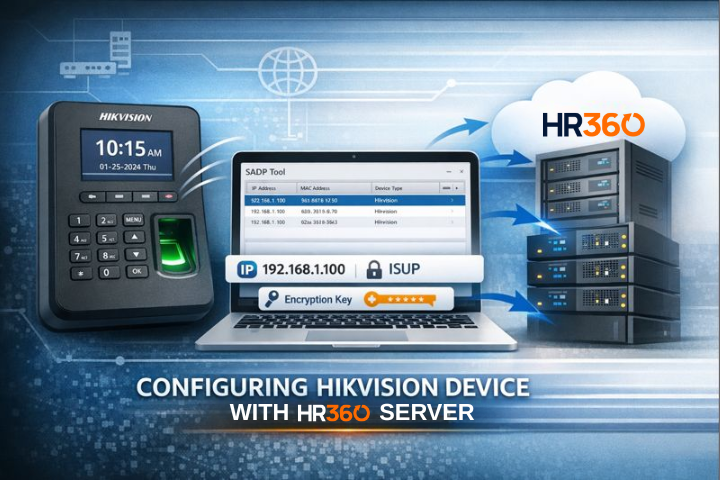
Step-by-step installer guide to connect Hikvision biometric devices to the HR360 server.
This guide is intended for installers and IT technicians configuring a Hikvision fingerprint or biometric device to work with the HR360 server.
Important: The Hikvision device must be connected to a network with internet access. The installer’s computer only needs to be on the same network if accessing the device locally for verification or troubleshooting.
Step 1: Power On and Network Connection
Power on the Hikvision biometric device
Connect the device to the network using:
LAN cable (recommended), or
Wi-Fi (if supported by the model)
Ensure the device shows active network connectivity
✅ If ISUP is configured directly from the device, no PC access is required.
Step 2: (Optional) Identify the Device IP Address
⚠️ This step is optional and NOT required for HR360 integration.
You only need the device IP address if you want to:
Access the device web interface
Verify network settings
Perform troubleshooting
If you are configuring ISUP directly from the device menu, you may skip this step.
Method A: Using Hikvision SADP Tool
The Hikvision SADP Tool can be used to discover devices on the local network.
Download the official Hikvision SADP Tool: 👉 https://www.hikvision.com/en/support/tools/hitools/clea8b3e4ea7da90a9/
Steps:
Open the SADP Tool on your computer
Ensure the computer is on the same network as the device
The tool will list active Hikvision devices, showing:
IP Address
MAC Address
Device status
Method B: Using the Device LCD Screen
On the device, navigate to:
Menu → Communication → Network → TCP/IP
View the assigned IP address.
Method C: Using the Router (DHCP List)
Log in to the router admin panel
Open DHCP Client List / Connected Devices
Identify the device using the MAC address printed on the device label
Common IP Address Ranges (Reference Only)
Default Hikvision IP:
192.0.0.64Typical office networks:
192.168.0.x,192.168.1.x
💡 These are for reference only and not required for HR360 setup.
Step 3: Configure ISUP from the Device (Primary Method)
HR360 integrates with Hikvision devices using the ISUP protocol, configured directly from the device itself.
On the device, log in as Admin, then navigate to:
Menu → Comm → EHome
In this section:
Enable EHome
Enable ISUP
This is one of the main and supported methods for connecting Hikvision biometric devices to HR360.
Step 4: Enter HR360 ISUP Details
Within the EHome / ISUP settings, enter the following:
Address Type: IP
Server IP: Provided by HR360
Port:
7660Device ID: Provided by HR360
Encryption Key: Provided / agreed with HR360
⚠️ Important
The Device ID must be used exactly as provided by HR360
The Encryption Key is mandatory and must match HR360 backend
Save all settings.
Step 5: Contact HR360 for Device Activation
⚠️ Device connectivity is NOT immediate
After ISUP configuration, contact HR360 support and share:
Device model
MAC address
Device ID
Encryption key
Company / site name
❗ Device IP address is NOT required, but the device needs have access to the internet via Wifi or LAN.
HR360 will activate the device from the server side.
Step 6: Confirm Device Connectivity (After HR360 Activation)
Once HR360 activates the device:
The device will automatically connect to the HR360 server
Initial data sync may take a few minutes
No further installer action is required unless requested by HR360
Installer Notes
ISUP configuration can be done entirely from the device, but may vary depending on the model
Device IP is not required for HR360 integration
Do not change Device ID or Encryption Key after activation
Any change requires re-activation on HR360
Do not reset the device unless instructed by HR360 support